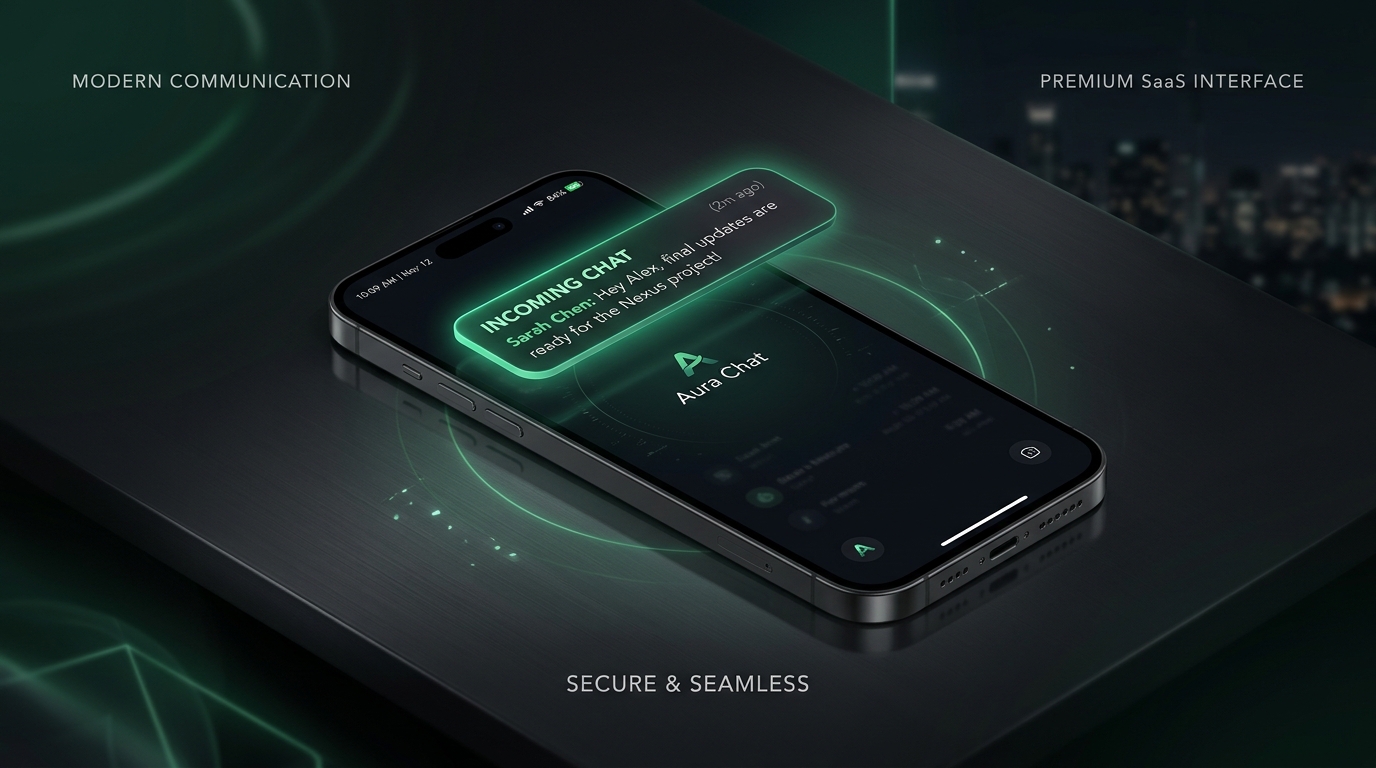
Push notifications on your phone and computer: customer alerts even with the app closed
Anyone who serves customers on WhatsApp or chat channels knows how much speed matters. The first minutes after a message are decisive to close a sale, answer questions or deliver excellent support.
Until now, to avoid missing any message in Xbase, you had to keep the browser tab open or the app always visible on screen. If you minimized the window or put your phone in your pocket, you didn't find out when a new contact reached out.
Starting today, that has changed. Xbase now has native push notifications on your phone and computer: your device rings, vibrates and shows the alert instantly as soon as a lead or customer sends a new message, even with the app closed or in the background.
How it works (WhatsApp style)
The system was designed to behave as naturally and quickly as the world's leading messaging apps:
- Clear name and identification: The notification highlights the contact's name (or the phone number of whoever reached out). If the contact has a profile photo, it is shown too.
- Smart content preview: You read a summary of the first 120 characters of the message or an indicator of the media received:
- 🎵 Voice message
- 📷 Image
- 📄 Document
- 🎥 Video
- 📍 Location
- Tap and go straight to the point: When you click the notification, Xbase immediately opens the ChatCenter screen focused on that customer's exact conversation, ready for you to reply.
- Works with the app closed: Thanks to the international W3C Web Push standard, notifications are delivered by the device's own operating system in the background, without draining the battery unnecessarily.
Smart routing for your team
In real customer service operations, some conversations already have an owner and others have just arrived. Xbase push was built to act logically in each case:
- Conversation with a human agent: If the conversation is already assigned to an agent on the team, the push notification is sent straight to their device.
- Conversation with no owner or handled by AI: When a new message arrives in the queue or is being answered by an AI Agent and no human is assigned yet, Xbase notifies the active workspace members who opted in to alerts, making sure nobody is left without an answer.
Zero spam and 100% individual control per Workspace
Nobody likes having their phone bombarded with unwanted notifications all day. That's why we built the system around three privacy and productivity principles:
- Off by default: All message notifications start turned off. Nothing rings or vibrates unless you expressly allow it.
- Control per Workspace: If you belong to multiple workspaces (for example, your main company and a test account or partner clients' account), you can turn notifications on only for the workspace you want to follow and keep the others silent.
- Individual preferences: Each member's choice is saved in their own profile. If you turn it off on your phone, the other members of your team keep receiving it normally on their devices.
- Separation by category: You can choose to turn on only "New customer messages", only "System and service actions" (such as owner changes), or both.
How to turn it on on your device
Turning on notifications takes less than a minute:
- Open Xbase on your phone (installed as an app on the home screen or in the browser) or on your computer.
- In the side or bottom-left menu, make sure you are in the Workspace you want to follow.
- Go to Settings > Notifications.
- On the Push Notifications (Phone and Browser) card:
- If your device isn't authorized yet, click Enable on this device and confirm the permission in the browser window.
- Turn on the "New customer messages" switch (and also "System actions", if you want).
- Click the "Test on my device" button: your phone or computer will show a test notification right away so you can confirm everything is working perfectly!
Tips for Android, iPhone and Computer
On Android
- If you use Xbase installed on the home screen (PWA) or in Chrome, notifications work fully natively.
- Check that your phone's extreme battery saver or "smart notification organizers" aren't silencing Xbase alerts.
On iPhone (iOS)
- In Apple's ecosystem, Safari requires Xbase to be added to the Home Screen to allow push notifications in the background (requires iOS 16.4 or later).
- Just open Xbase in Safari, tap the Share button (the square icon with the up arrow), choose "Add to Home Screen" and then open the settings in the installed app to allow notifications.
On the Computer
- Works in Google Chrome, Microsoft Edge, Brave, Mozilla Firefox and Safari. The banner appears in the notification area of Windows, macOS or Linux.
Frequently asked questions
Do I need to keep Xbase open to get the alerts?
No. Push notifications arrive even with the app closed, the screen locked or the browser minimized.
If I turn off notifications, does it turn them off for the whole team?
No. The setting is strictly personal and specific to your user. Each agent has full control over their own device.
Can I silence notifications outside working hours?
Yes. Just go to Settings > Notifications at the end of the workday and turn off the workspace switch. The next day, turn it back on with one tap.
Is there any additional cost to use push notifications?
None. The feature uses native web standards (Web Push) and is already available at no extra cost on every plan of the platform.
Keep reading
From script to Reels ad without leaving XBASE
Create the Reels in the Studio in 6 steps, already in the format Meta recommends for ads (9:16, with sound and text in the safe zone), and take the piece to the ad set with the WhatsApp button.
Read articleFind customers on Google Maps and send them straight to your funnel
Enter a topic and a city: XBASE Prospecting brings in businesses from Google Maps with phone, website and rating, keeps the ones with a mobile number and sends the leads you pick to a funnel stage.
Read article