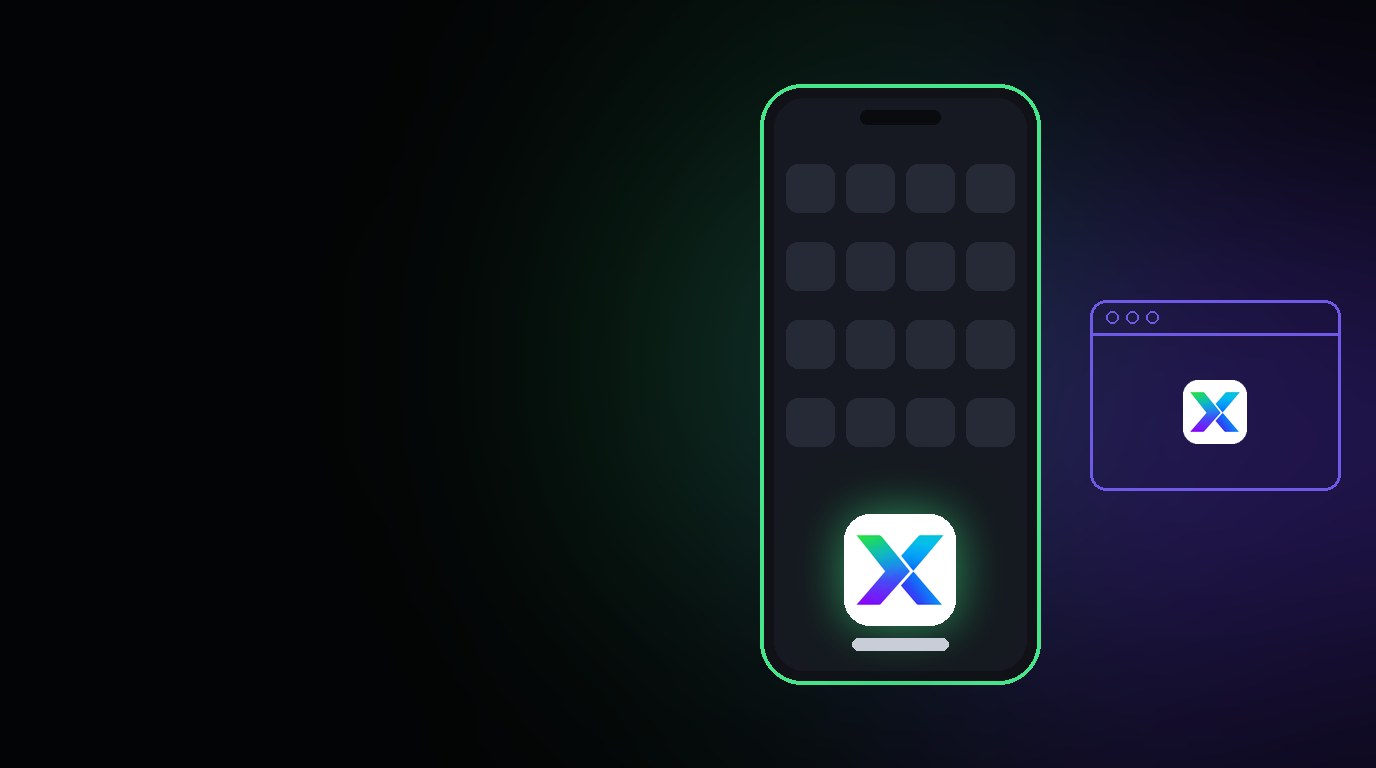
You can now install Xbase as an app on your phone and computer
Anyone who serves customers with Xbase keeps it open all day. Until now, that meant hunting for the right tab among ten others, typing the address on the phone or saving a bookmark nobody can find.
Starting today, Xbase can be installed as an app. It gets an icon on your phone screen or on your computer and opens full screen, straight into your dashboard, like any other app.
What changes in practice
- An Xbase icon on the home screen, next to WhatsApp and Instagram. On the computer, it shows up in the Start menu, the Dock or the taskbar.
- Opens in its own window, with no address bar and no tabs. There's more room for conversations.
- Goes straight into the dashboard. If you're already signed in, you land on your dashboard. If not, you go to the sign-in screen.
- Shows up in the phone's list of open apps, separate from the browser. It's easy to switch between Xbase and the customer's WhatsApp.
No app store needed
The Xbase app doesn't go through the App Store or the Play Store. You install it from the browser itself, in a few seconds, and it takes up almost no space on the device.
And it's always up to date: it's the same Xbase you use in the browser. Every improvement we release already shows up in the app, with no update to download.
How to install
The easiest way is from the dashboard itself. As soon as you sign in to your account in the browser, Xbase shows a floating card "Install the Xbase app":
- In Chrome or Edge (computer or Android phone): just click the Install button right on the card and confirm in the browser window.
- On iPhone (Safari): the card itself shows the instructions with the Share icon.
If you clicked Not now or the notice didn't show up at the time, you can install it anytime with the steps below.
On Android
- Open Xbase in Chrome and sign in to your account.
- Tap Install on the card that appears at the bottom of the screen. If it isn't visible, tap the three dots (⋮) in the top-right corner and choose Install app (or Add to Home screen).
- Confirm. The Xbase icon will be added to your home screen.
On iPhone
- Open Xbase in Safari and sign in to your account.
- The Xbase card will guide you, or you can tap the Share button directly (the square with the up arrow in the Safari bar).
- Scroll through the options and tap Add to Home Screen.
- Tap Add in the top-right corner. The Xbase icon appears on your home screen.
On the computer
- Open Xbase in Chrome or Edge and sign in to your account.
- Click the Install button on the card that appears in the bottom-right corner of the screen.
- If the card isn't visible, click the install icon on the right side of the address bar (a monitor icon with an arrow) or the three dots (⋮) → Install Xbase.
The full step-by-step guide, including what to do if the option doesn't appear, is in the documentation.
What it doesn't do yet
To be transparent about this first version:
- Notifications on the phone don't arrive yet. New message alerts keep showing while Xbase is open. Alerts with the app closed are in our plans.
- It needs internet. Xbase shows conversations in real time, so it doesn't work offline.
Frequently asked questions
Is it a different app from the website? No. It's the same Xbase, with the same account, the same conversations and the same settings. Only the way you open it changes.
Do I need to install it on each device? Yes. Install it on the phone and the computer you use to serve customers. The account is the same on all of them.
How do I uninstall it? Like any app: press and hold the icon and choose remove. On the computer, open the app, click the three dots in the window and choose uninstall.
Does it take up a lot of space? Almost none. The app is a shortcut to Xbase, with the content coming from the internet just like in the browser.
Keep reading
From script to Reels ad without leaving XBASE
Create the Reels in the Studio in 6 steps, already in the format Meta recommends for ads (9:16, with sound and text in the safe zone), and take the piece to the ad set with the WhatsApp button.
Read articleFind customers on Google Maps and send them straight to your funnel
Enter a topic and a city: XBASE Prospecting brings in businesses from Google Maps with phone, website and rating, keeps the ones with a mobile number and sends the leads you pick to a funnel stage.
Read article