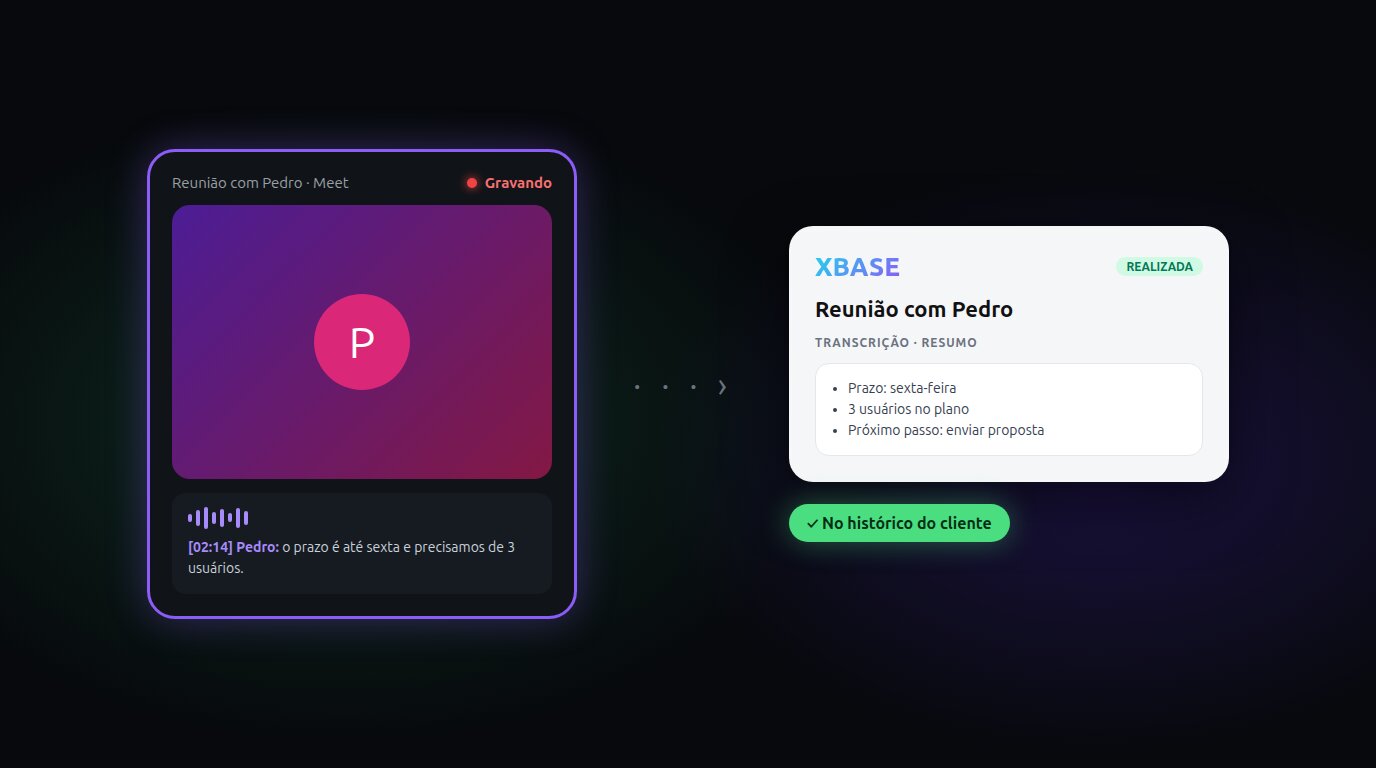
Your meeting summaries and transcripts, right in the customer history
The meeting is over and it went well: the customer explained the problem, talked about deadlines, asked about the price. A week later, whoever picks up the deal has to guess what was said, because the recording stayed in Tactiq, far from the CRM.
Now XBASE brings the summary and the transcript of the meetings you record in Tactiq into the meeting in the Calendar, next to the contact and the pipeline.
Only works with a paid Tactiq plan. On the free plan, XBASE finds the recordings, but Tactiq does not release the summary or the transcript to other apps.
The transcript always lives inside an XBASE meeting. Open a Calendar meeting (scheduled by XBASE or one that exists only in your Google Calendar) after it ends, and XBASE finds the right recording by its time (the names of the participants help confirm it). Recorded a meeting that is not on any calendar? Use Import from Tactiq: XBASE creates the completed meeting, linked to the contact you choose.
What changes day to day
- What the customer said stays in their history. Open the meeting and the summary is there, plus the whole conversation if you need it.
- The team reads it without asking anyone for the video. Whoever can see the meeting sees the transcript, respecting who can see which conversations.
- The cards show what has a transcript. In the contact's Meetings tab, in the Chatcenter and in the Pipeline, the Transcript badge tells you.
- Nothing ends up in the wrong place. XBASE suggests the right recording by time and by who took part, but the transcript only goes in when you confirm.
How it works in three steps
- After the meeting, open it in the Calendar and, in the Transcript section, click Connect Tactiq (first time only).
- XBASE shows "We found the recording in your Tactiq" with the time and the participants.
- Click Use this transcript. Done: the summary appears in the meeting and View full transcript shows everything that was said.
Recorded a meeting that was not on the calendar? In the Calendar, click Tactiq recordings, choose the recording and the contact, and click Import: the meeting goes into the customer history already marked as completed.
Each person connects their own Tactiq account and only sees the recordings they made. Want to take it out? Remove transcript deletes the XBASE copy, and nothing changes in Tactiq.
What you need
- A Tactiq account on a paid plan that releases the transcript to other apps.
- The meeting in the XBASE Calendar (scheduled by XBASE or only in your Google Calendar) — or import the recording with the Tactiq recordings button.
- To have recorded the meeting with Tactiq.
The integration is included in every XBASE plan. The full step-by-step guide is in the tutorial How to bring the Tactiq transcript into the meeting.
Keep reading
From script to Reels ad without leaving XBASE
Create the Reels in the Studio in 6 steps, already in the format Meta recommends for ads (9:16, with sound and text in the safe zone), and take the piece to the ad set with the WhatsApp button.
Read articleFind customers on Google Maps and send them straight to your funnel
Enter a topic and a city: XBASE Prospecting brings in businesses from Google Maps with phone, website and rating, keeps the ones with a mobile number and sends the leads you pick to a funnel stage.
Read article