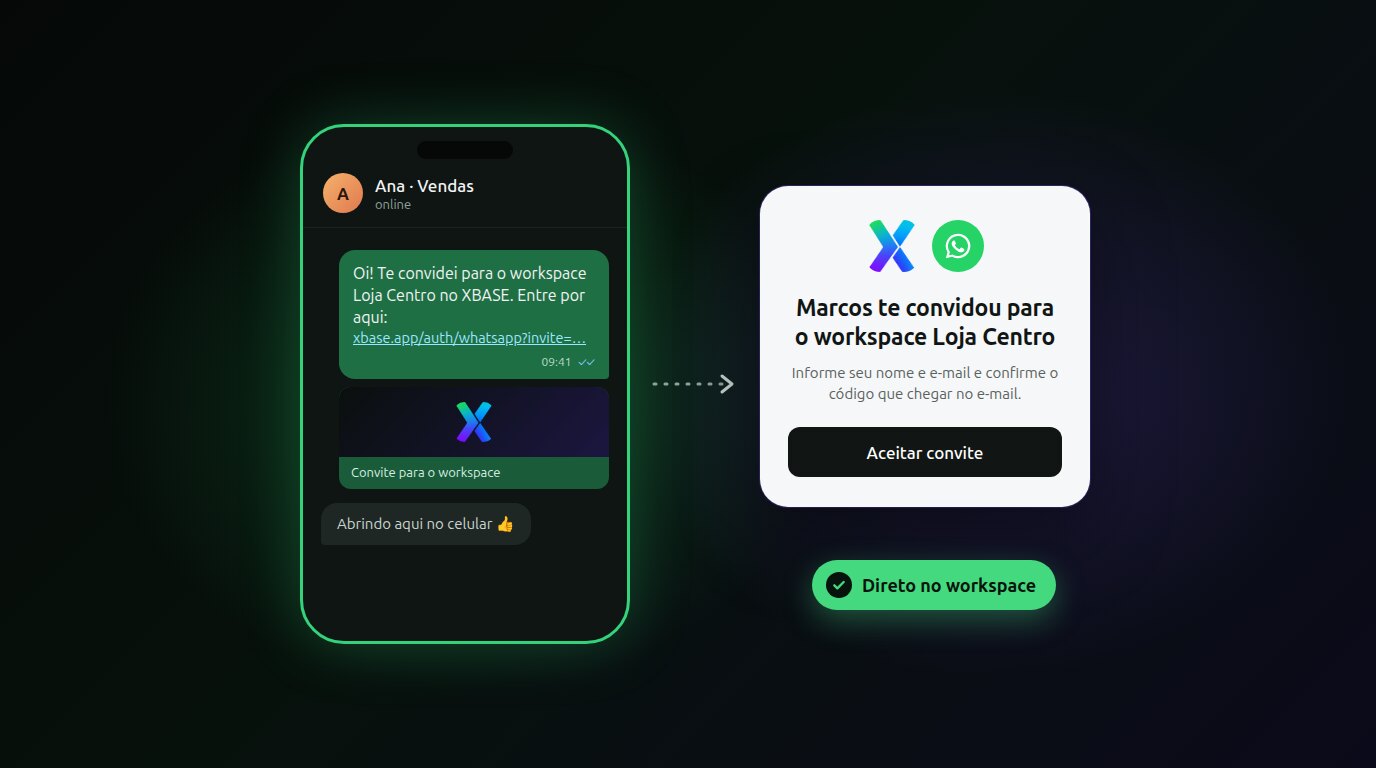
You can now invite your team through WhatsApp
Until now, adding someone from your team to XBASE started with an invite email. It works, but anyone in customer service and sales knows where the team really is: on WhatsApp. The salesperson who spends the day on the road, the agent who only opens email at the end of the day, the freelancer you brought in to help this week.
Now you invite people by their WhatsApp number. You send the invite link from your own WhatsApp, they open it on their phone and go straight into your workspace, already with the role you chose.
Why invite through WhatsApp
- The message comes from someone they know. The link goes out from your WhatsApp, in a chat they already have with you. No email from an unknown sender, lost in spam or in the promotions tab.
- Everything from the phone. The person opens the link in their own WhatsApp and signs in for the first time right there, without having to sit at a computer.
- They land straight on the work. Whoever joins by invite skips the initial account setup (creating an agent, connecting a channel). They open your workspace and already see the conversations, contacts and pipelines their role allows.
- No configuration required. You don't need the WhatsApp API connected or a company number: the invite uses the WhatsApp you already have on your phone or computer.
How to invite in three steps
- Open the workspace members: click the workspace name at the bottom of the sidebar, then Invite.
- In the Invite people block, choose WhatsApp, type the person's number with the area code, pick the Role and click Send Invite.
- In the window that opens, click Open my WhatsApp. The chat with the person shows up with the message and the link ready: just send it.
Prefer another channel? Use Copy link and paste it wherever you like.
What the person sees on the other end
They get your message with the link and:
- open the link and tap Accept invite;
- enter their name and email;
- type the 6-digit code that arrives by email;
- if it's their first time on XBASE, create a password.
Done: they are inside your workspace. Next time, they sign in with the email and password they created, on the phone or the computer.
Whoever already has an XBASE account enters the same email as that account. The invite goes into it, without creating another account or another password.
Security and control stay with you
- The link is valid for 7 days and works only once. Once accepted, it's no use to anyone else.
- The email is confirmed with a code before the account is created.
- You choose the role before sending, and the role defines what the person can see and do in the workspace.
- Only people with the Manage members permission can invite.
- Changed your mind? In the Pending invites tab, the trash icon cancels the invite and the link stops working. From there you can also resend it through WhatsApp or copy the link again.
Frequently asked questions
Does XBASE send any message to the person? No. You send it, from your WhatsApp. That's why there's no message cost and no company number involved.
Does the person need an email address? Yes. They enter the email and confirm it with the code that arrives there. That email, and the password they create, is what they use to sign in later.
Can I still invite by email? Yes. In the Invite people block you choose Email or WhatsApp for each invite.
Can the person be in more than one workspace? Yes. Each workspace has its own members and roles, and they switch from one to another through the workspace menu.
The full step-by-step guide, with the most common problems, is in the tutorial How to invite someone to the workspace through WhatsApp. To understand members, invites and what each role can do, read Workspaces, members and roles.
Keep reading
From script to Reels ad without leaving XBASE
Create the Reels in the Studio in 6 steps, already in the format Meta recommends for ads (9:16, with sound and text in the safe zone), and take the piece to the ad set with the WhatsApp button.
Read articleFind customers on Google Maps and send them straight to your funnel
Enter a topic and a city: XBASE Prospecting brings in businesses from Google Maps with phone, website and rating, keeps the ones with a mobile number and sends the leads you pick to a funnel stage.
Read article